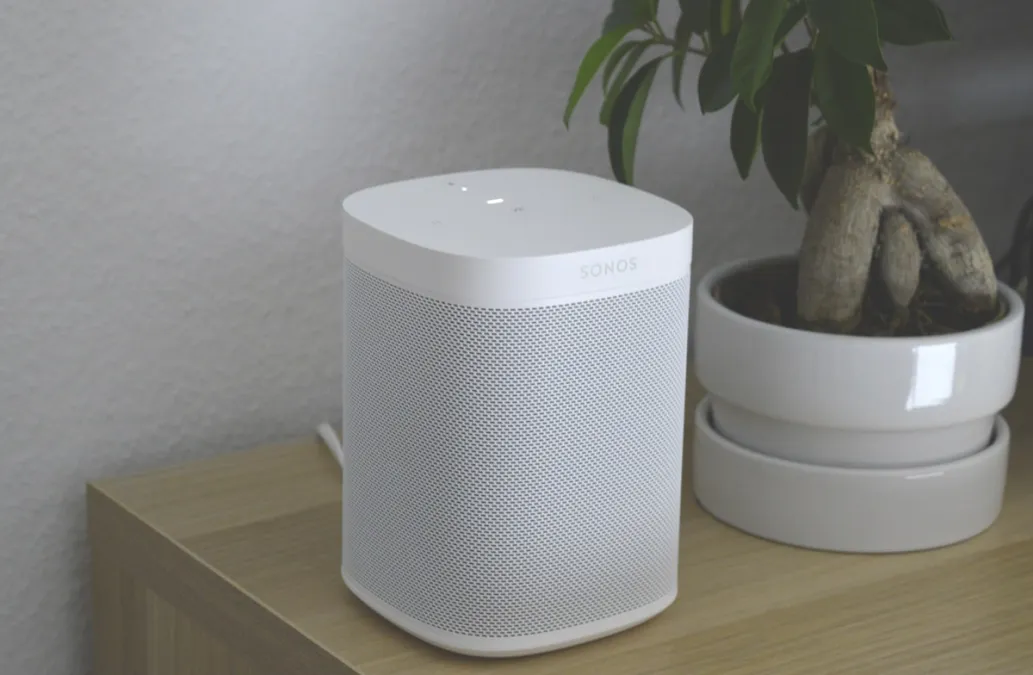
How to Set Up Multi-Room Audio with Sonos
Why Multi-Room Audio Changes Everything
There's something magical about having music follow you through your home. Walk from the kitchen to the living room and the song continues easily. Host a party where every room pulses with the same beat. Or let family members play different music in different rooms without conflict.
Sonos pioneered multi-room audio and remains the gold standard for wireless whole-home sound. This guide walks you through building your system from scratch.
Planning Your Sonos System
Room-by-Room Approach
Start by listing where you want music and what matters most in each space:
| Room | Priority | Recommended Speaker |
|---|---|---|
| Living Room | Best sound quality | Sonos Era 300, Arc, or Five |
| Kitchen | Compact, voice control | Sonos Era 100 or One |
| Bedroom | Compact, alarm features | Sonos Era 100 or One |
| Bathroom | Humidity resistant | Sonos Move 2 or Roam |
| Outdoor/Patio | Weather resistant | Sonos Move 2 or Roam |
| Home Office | Clear audio for calls | Sonos Era 100 |
Starting Point
If you're just beginning, start with two speakers in your most-used rooms. This gives you immediate multi-room capability while you expand over time.
Setting Up Your First Sonos Speaker
What You'll Need
- Sonos speaker
- Smartphone with Sonos app (iOS or Android)
- WiFi network (2.4GHz or 5GHz)
- Power outlet near desired location
Step-by-Step Setup
- Download the Sonos app and create an account (or sign in)
- Plug in your speaker and wait for the status light to flash
- Open the Sonos app and tap "Set up a new system" or "Add product"
- Follow the prompts to connect the speaker to your WiFi
- Name your speaker based on its room (Kitchen, Living Room, etc.)
- Run Trueplay tuning (iOS only) to optimize sound for your room
Optimal Placement
- Height: Ear level when seated is ideal, but Trueplay compensates for other positions
- Distance from walls: A few inches minimum for bass performance
- Corners: Avoid placing directly in corners (boomy bass)
- Obstructions: Keep the front unobstructed for best sound
Adding More Speakers
Each additional speaker follows the same setup process. The Sonos app automatically discovers new speakers and adds them to your system.
Creating Stereo Pairs
Two identical Sonos speakers in the same room can be paired for true stereo separation:
- Open Sonos app and go to Settings
- Select the room with both speakers
- Tap "Create Stereo Pair"
- Follow prompts to designate left and right speakers
Building a Home Theater
Sonos excels at TV audio with expandable surround sound:
- Soundbar: Arc, Beam, or Ray as the foundation
- Surrounds: Add Era 100, Era 300, or One for rear channels
- Sub: Sonos Sub or Sub Mini for deep bass
Grouping and Playing Music
Playing to Multiple Rooms
- Start music playing in any room
- Tap the room name at the bottom of the Now Playing screen
- Select additional rooms to add to the group
- Adjust individual room volumes as needed
Creating Permanent Groups
For rooms you always want grouped (like an open floor plan):
- Go to Settings > System > [Room Name]
- Tap "Create Room Group"
- Select the rooms to permanently combine
- Name the group (e.g., "Downstairs")
Voice Control Integration
Amazon Alexa
Sonos speakers with built-in mics (Era 100, Era 300, One, Move 2, Roam) support Alexa natively:
- Open Sonos app > Settings > Services & Voice
- Select Amazon Alexa and sign in
- Enable Alexa on desired speakers
Google Assistant
Google Assistant support is available on Era 100, Era 300, One, and Move speakers:
- Open Sonos app > Settings > Services & Voice
- Select Google Assistant and link your account
- Configure which speakers respond to "Hey Google"
Apple AirPlay 2
All modern Sonos speakers support AirPlay 2 for smooth Apple integration:
- Stream directly from any iOS app
- Use Siri to control playback
- Include Sonos speakers in HomeKit scenes
Music Services
Sonos supports 100+ streaming services. Popular options include:
- Spotify (Connect and direct control)
- Apple Music
- Amazon Music
- YouTube Music
- Tidal
- Deezer
- Pandora
- Local music libraries (NAS, computer)
Add services in the Sonos app under Settings > Services & Voice > Music & Content.
Pro Tips for the Best Experience
Network Optimization
- Dedicated WiFi: If possible, use a separate SSID for Sonos to reduce interference
- Wired backbone: Connect one speaker via Ethernet to create SonosNet
- Mesh WiFi: Modern mesh systems work great with Sonos
Automation Ideas
- Morning routine: Gentle music starts with your alarm
- Arrive home: Music begins when you walk in
- Cooking playlist: Kitchen speaker activates when motion detected
- Bedtime: Music fades and stops at sleep time
Trueplay Tuning
Run Trueplay whenever you move a speaker or significantly change the room (new furniture, rugs, etc.). The improvement in sound quality is dramatic.
Ready to Build Your System?
Multi-room audio transforms how you experience music at home. Start with two rooms you use daily, then expand as budget allows. Every new speaker makes the system more versatile and valuable.
Browse our complete guide to smart speakers to find the perfect Sonos products for your home.