Securing Your Smart Home: A Complete Guide
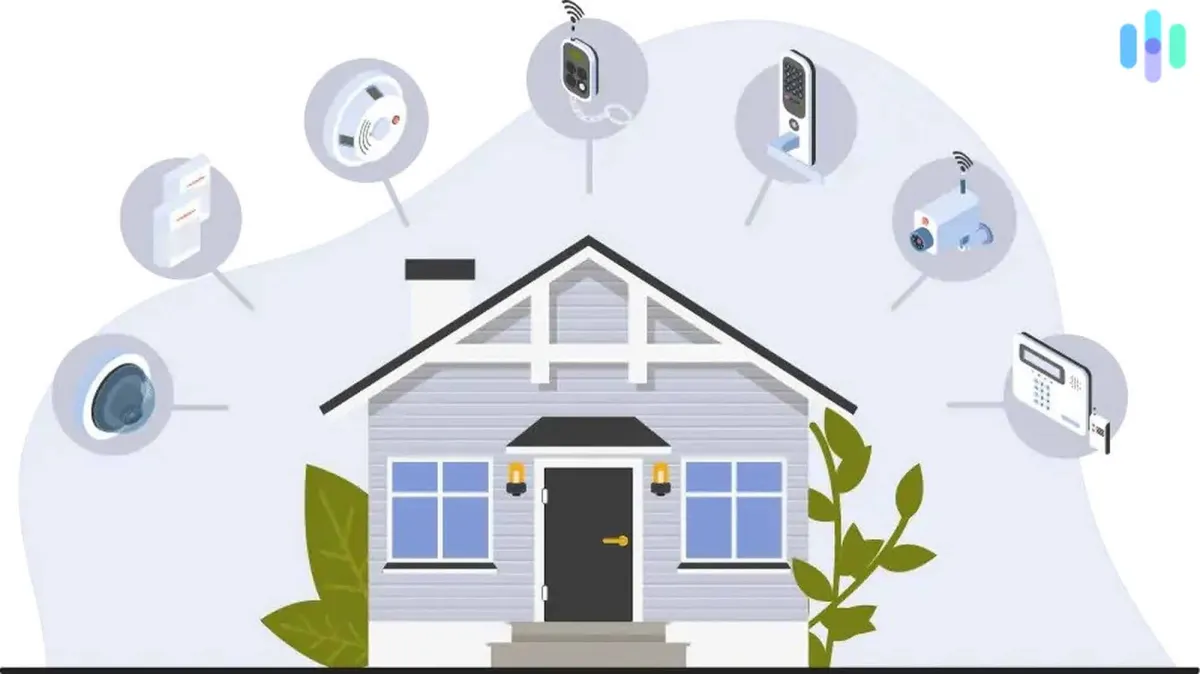
Last year, a security researcher published a report showing that a popular brand of smart cameras was sending unencrypted video data to servers in China. The cameras had been on sale at Amazon for years with thousands of five-star reviews. They cost $25 and worked great. Nobody read the privacy policy.
That story stuck with me because I had three of those exact cameras in my house. They're gone now, but the experience forced me to take smart home security seriously. Not the paranoid "unplug everything" kind of seriously, but the practical "let's not make it easy for anyone" kind. Here's what I've learned.
Your Router Is the Front Door
If you only do one thing from this article, do this: log into your router's admin panel and change the default password. The default credentials for most consumer routers are publicly available online. Anyone on your Wi-Fi network with the default admin password can see every device connected, redirect traffic, or install malicious firmware.
While you're in there, check these settings:
- Encryption: You want WPA3 if your router supports it. WPA2 is still acceptable, but WPA or WEP are not. If your router only supports WEP, it's time for a new router.
- WPS (Wi-Fi Protected Setup): Turn it off. That convenient button on your router that lets you connect devices without a password? It's a known security vulnerability. Brute-force attacks against WPS take minutes, not hours.
- Remote management: Disable it unless you specifically need it. This prevents anyone outside your network from accessing the router's admin panel.
- Firmware: Update it. Router manufacturers patch vulnerabilities regularly, and most people never update. Set a reminder to check quarterly.
Create a Separate Network for Smart Devices
This is the single most effective security measure you can take, and most modern routers make it easy. Create a separate Wi-Fi network (sometimes called a "guest network" or "IoT network") for your smart home devices. Keep your computers, phones, and anything with sensitive data on your main network.
Why? If a smart device gets compromised, the attacker is isolated on the IoT network and can't reach your laptop, your NAS, or your phones. It's the same principle as a firewall in a building: contain the damage.
Most mesh routers (Eero, Google Wifi, TP-Link Deco) let you create a separate network in the app. On my Eero system, it took about two minutes. The only inconvenience is that some devices need to discover each other on the same network for initial setup, so you might temporarily need to move your phone to the IoT network during pairing.
The Password Problem
You probably have accounts with a dozen different smart home services: your thermostat manufacturer, your camera company, your light bulb app, your robot vacuum, your doorbell. If you're using the same password for all of them, you have a serious problem.
When one service gets breached (and they do get breached), attackers try those credentials on every other service. This is called credential stuffing, and it's responsible for the vast majority of smart home "hacks" that make the news. The person whose Nest camera started talking to their toddler? Almost certainly a reused password from a breached database.
Use a password manager. I use 1Password, but Bitwarden is excellent and has a free tier. Generate a unique, random password for every smart home account. Yes, it's a pain to set up. Do it anyway. It takes an afternoon and you only have to do it once.
And enable two-factor authentication on every service that offers it. Your smart camera account should not be one stolen password away from giving a stranger a live view of your living room.
Firmware Updates: The Boring Essential
I get it, nobody wants to spend their Saturday evening updating smart bulb firmware. But outdated firmware is how most real-world smart home attacks work. Researchers find vulnerabilities in device software, and manufacturers release patches. If you don't update, you're running software with known, published security holes.
Enable automatic updates wherever possible. For devices that don't support auto-updates, set a monthly calendar reminder to check. The Zigbee and Z-Wave devices on my network get firmware updates through Home Assistant, and I check for updates on the first of every month. It takes five minutes and it's the most boring, effective security practice there is.
Choose Devices from Companies That Will Still Exist
This sounds cynical, but it's practical. When a smart home startup goes under (and many do), their cloud servers shut down and your devices become paperweights. Worse, there are no more security patches. You're running an internet-connected device with known vulnerabilities and zero chance of a fix.
Stick with established brands or devices that support local control. A Zigbee sensor that works with Home Assistant will keep working long after the manufacturer's cloud servers are gone. A cloud-only camera from a Kickstarter startup might not.
The Case for Local Control
Every device that requires a cloud connection to function is a device that sends your data to someone else's server. There's an inherent security advantage to devices that process everything locally:
- No cloud server means no cloud breach can expose your data.
- No internet connection required means the device works during outages.
- No third-party involvement means no company can change the privacy policy after you've bought the device.
Zigbee and Z-Wave devices running through a local hub like Home Assistant are the most secure smart home setup you can build. Thread/Matter devices are a close second since they're designed for local communication, with cloud features optional.
If you want the security cameras without the cloud, look at solutions that support local recording: Home Assistant with Frigate, Blue Iris on a Windows machine, or Synology Surveillance Station on a NAS. Your footage stays on your hardware, not someone else's server.
What to Do Right Now
You don't need to overhaul everything today. Start with the highest-impact items:
- Change your router's admin password if it's still the default. This takes two minutes.
- Set up a separate IoT network for your smart devices. Twenty minutes.
- Install a password manager and start generating unique passwords for your smart home accounts. An afternoon, but you only do it once.
- Enable two-factor authentication on camera, lock, and alarm accounts. These are the highest-stakes devices. Ten minutes.
- Check for firmware updates on all your devices. Thirty minutes.
None of this is complicated or expensive. It's just the kind of thing that's easy to put off until you see a headline about someone's baby monitor getting hacked. Don't wait for the headline.